How To Reset Samsung Microwave Oven With These Steps
Resetting your Samsung microwave oven is simpler than you think. Whether your microwave is showing error codes, the display is frozen, or it just stopped working, a reset can often fix the problem in minutes. This guide covers soft resets, hard resets, and model-specific steps so you can get back to cooking without calling a technician.
Key Takeaways
- Soft Reset: A simple power cycle can resolve most minor glitches and display errors on your Samsung microwave.
- Hard Reset: Unplugging the unit for 5-10 minutes clears deeper system errors and resets all settings to default.
- Error Codes Matter: Understanding Samsung microwave error codes helps you pinpoint the exact problem before resetting.
- Model Variations: Different Samsung microwave models may have slightly different reset procedures, so check your manual.
- Safety First: Always unplug the microwave before performing any internal checks or hard resets.
- When to Call a Pro: If resetting does not fix the issue, the problem may be hardware-related and needs professional attention.
📑 Table of Contents
- How To Reset Samsung Microwave Oven With These Steps
- Why Does a Samsung Microwave Need a Reset?
- Soft Reset: The Quick and Easy Method
- Hard Reset: The Complete Power Cycle
- Samsung Microwave Error Codes and What They Mean
- Model-Specific Reset Instructions for Popular Samsung Microwaves
- Common Mistakes People Make When Resetting a Samsung Microwave
- Preventing Future Reset Issues with Your Samsung Microwave
- When To Call a Professional Instead of Resetting
- Final Thoughts on Resetting Your Samsung Microwave
How To Reset Samsung Microwave Oven With These Steps
Your Samsung microwave oven suddenly stops working, the display goes blank, or it starts beeping nonstop. It is frustrating, right? The good news is that a Samsung microwave reset often solves these problems without any special tools or technical skills. You do not need to be an electrician or a repair expert. In most cases, a simple reset takes less than five minutes and brings your appliance back to life.
This guide walks you through every method to reset your Samsung microwave. We cover soft resets, hard resets, and model-specific tips. By the end, you will know exactly what to do no matter which Samsung model you own. Let us get your microwave working again.
Why Does a Samsung Microwave Need a Reset?
Microwaves are smart appliances. They have control boards, sensors, and digital displays that manage everything from cooking time to power level. Sometimes, these systems freeze or glitch. A reset clears the temporary data and restores normal operation. Think of it like restarting your phone when it acts up.
Here are the most common reasons you might need a Samsung microwave reset:
- Error codes appear on the display and the microwave will not start.
- The control panel becomes unresponsive or stuck on one setting.
- The microwave stops heating even though the turntable and light still work.
- Unusual beeping or flashing lights that do not stop.
- Power surges or electrical fluctuations disrupt the internal settings.
- The display goes blank but the unit still has power.
Most of these issues are temporary software glitches. A reset clears them out quickly. However, if the problem comes back after resetting, there may be a deeper hardware issue that needs professional attention.
Soft Reset: The Quick and Easy Method
A soft reset is the first thing you should try. It takes seconds and does not erase any custom settings. Think of it as a gentle restart for your microwave.
Step-by-Step Soft Reset Process
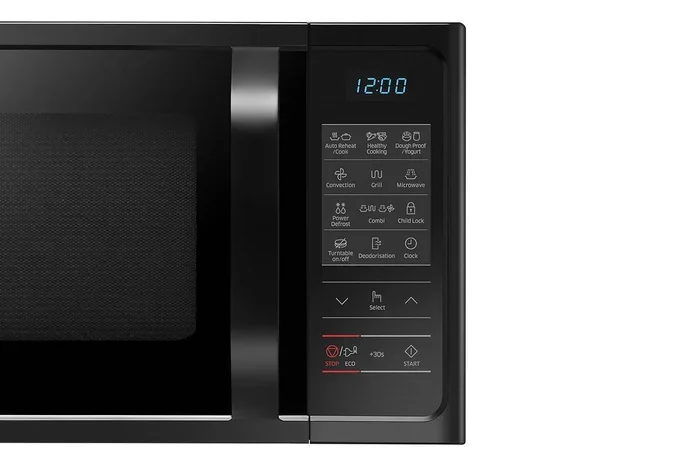
- Press the Off/Clear button. Hold it for about 3 to 5 seconds. This cancels any active cooking cycle and clears the display.
- Unplug the microwave from the wall outlet. Wait at least 60 seconds.
- Plug the microwave back in. Wait for the display to light up.
- Test the microwave by running a short 30-second cycle to see if it works normally.
This method works for most Samsung microwave models including the Samsung MS14K6000AS, Samsung MS18K7000TS, and the popular Samsung MS23K3575BF countertop units. If the soft reset does not work, move on to the hard reset method below.
When a Soft Reset Is Not Enough
Sometimes a soft reset only clears the display but the microwave still does not heat. Or the error code keeps coming back. In these cases, you need a deeper reset. This is where the hard reset comes in.
Hard Reset: The Complete Power Cycle
A hard reset is more thorough. It drains all residual power from the microwave’s circuit board and clears stored error codes. This method is like giving your microwave a full system restart.
How To Perform a Hard Reset on Your Samsung Microwave
- Turn off the microwave using the Off/Clear button.
- Unplug the power cord from the wall outlet. Do not just turn off the circuit breaker yet.
- Press and hold the Off/Clear button for 10 seconds while the unit is unplugged. This drains any remaining capacitor power.
- Wait at least 5 minutes. This allows the internal circuits to fully discharge and reset.
- Plug the microwave back in. The display should light up with the clock or default screen.
- Set the clock if needed and run a test cycle.
A hard reset is especially helpful when you see Samsung microwave error codes like E1, E2, E3, or SE. These codes usually indicate sensor faults, door switch issues, or control board errors. After a hard reset, many of these codes disappear.
Quick Tip
If your Samsung microwave beeps continuously after a hard reset, check the door latch. A misaligned door switch is one of the most common causes of persistent beeping. Close the door firmly and try again.
Samsung Microwave Error Codes and What They Mean
Understanding error codes helps you decide whether a reset will fix the problem or if you need a different solution. Samsung microwaves display specific codes that point to the underlying issue.
| Error Code | Meaning | Reset Fix? |
|---|---|---|
| E1 | Overheating or thermistor fault | Soft reset may work; check ventilation |
| E2 | Sensor error | Hard reset usually resolves this |
| E3 | Door switch malfunction | Reset may help; inspect door latch |
| E4 | Fan motor issue | Reset rarely fixes; may need part replacement |
| SE | Control board communication error | Hard reset often clears this code |
| 5E | Voltage fluctuation detected | Soft reset usually sufficient |
If the error code persists after both a soft and hard reset, the problem is likely hardware-related. At that point, you should contact Samsung support or a certified technician. Do not keep using the microwave with error codes displayed, as this can cause further damage.
Model-Specific Reset Instructions for Popular Samsung Microwaves
Not all Samsung microwaves reset the same way. Some models have a dedicated reset button, while others require the manual method described above. Here are the steps for some of the most popular models.
Samsung Countertop Microwaves (MS14K, MS18K, MS23K Series)
These models use the standard soft and hard reset methods. Simply unplug the unit for 5 minutes. Most users find that the soft reset solves 80% of issues with these models. If the display is completely unresponsive, go straight to the hard reset.
Samsung Over-the-Range (OTR) Microwaves
OTR models like the Samsung MS18K7000TS have a slightly different process because they are harderwired into the kitchen electrical system. To reset these:
- Turn off the circuit breaker that powers the microwave.
- Wait 10 minutes.
- Turn the breaker back on.
- Check the display and run a test cycle.
If you have an OTR model, you may also want to check the Samsung microwave vent filter while you are at it. A clogged filter can cause overheating, which triggers error codes and the need for a reset.
Samsung Built-In and Drawer Microwaves
Built-in models such as the Samsung drawer microwave series require a power disconnect at the breaker. These units do not have a simple plug. After resetting, you may need to reprogram your favorite settings. The control panel on drawer microwaves is sensitive, so always use the buttons gently to avoid triggering false error codes.
Common Mistakes People Make When Resetting a Samsung Microwave
Many people make simple mistakes during the reset process that either do not fix the problem or make it worse. Here are the most common errors to avoid.
- Not waiting long enough. Some people unplug the microwave for only 10 seconds. You need at least 5 minutes for the internal capacitors to fully discharge.
- Ignoring the error code. A reset clears the code but does not fix the root cause. If the same error returns, investigate further.
- Using the microwave while it is still plugged in during the reset. Always unplug first for safety.
- Skipping the door check. A loose or misaligned door is a leading cause of microwave errors. Always verify the door closes properly before and after a reset.
- Assuming all Samsung models reset the same way. OTR, countertop, and built-in models have different power connections and reset procedures.
Avoiding these mistakes saves time and prevents unnecessary frustration. If you are unsure about any step, consult your owner’s manual or visit the Samsung support website for model-specific guidance.
Preventing Future Reset Issues with Your Samsung Microwave
Once you have successfully reset your Samsung microwave, you probably want to avoid needing another reset anytime soon. Here are some simple habits that keep your microwave running smoothly.
- Use surge protectors. Power surges are a leading cause of microwave glitches. A quality surge protector absorbs voltage spikes and protects your appliance.
- Clean the interior regularly. Food splatter can interfere with sensors and cause false error codes. Wipe down the inside after every use.
- Do not overload the microwave. Running it empty or with oversized containers strains the magnetron and control board.
- Keep ventilation clear. Samsung microwaves need airflow around the vents. Do not push the unit flush against the wall.
- Use microwave-safe containers only. Metal or non-microwave-safe containers can cause arcing and damage the internal components.
These small habits add up over time. They extend the life of your microwave and reduce the chances of needing another reset. Think of it as routine maintenance, just like you would do for any other kitchen appliance.
When To Call a Professional Instead of Resetting
A reset fixes most software-related issues, but it cannot repair physical damage. Here are signs that you need professional help:
- The microwave sparks or arcs inside during operation.
- It does not heat at all even after multiple resets.
- You smell burning or see smoke.
- The door does not close properly or the latch is broken.
- The error code returns immediately after every reset attempt.
In these situations, the problem is hardware-related. A technician can diagnose and replace faulty parts like the magnetron, high-voltage capacitor, or control board. Attempting to repair these components yourself can be dangerous and may void your warranty.
While your microwave is getting repaired, you might want to explore other cooking options in your kitchen. For instance, if you enjoy baking and roasting, you could look into how to make a tandoori oven at home as an alternative cooking method. Or, if you are curious about using your oven for different recipes, check out how to cook stuffed rouladen in the oven for a delicious meal idea. And if you ever wonder about kitchen safety, remember that putting a pizza box in the oven is not safe and can be a fire hazard.
Final Thoughts on Resetting Your Samsung Microwave
Resetting your Samsung microwave oven is one of the easiest and most effective troubleshooting steps you can take. Whether a simple soft reset or a full hard reset, most issues resolve quickly and safely. The key is to stay calm, follow the steps in order, and know when to stop and call a professional.
Keep this guide bookmarked for the next time your microwave acts up. Share it with family members who might need help too. A working microwave is essential in any kitchen, and knowing how to reset it puts you in control of the situation.
Remember that regular maintenance and smart usage habits go a long way in preventing issues before they start. Your Samsung microwave is a reliable appliance, and with the right care, it will serve you well for years to come.
Frequently Asked Questions
How long should I unplug my Samsung microwave for a hard reset?
You should unplug the microwave for at least 5 minutes. This gives the internal capacitors enough time to fully discharge and clears all stored error codes. Some technicians recommend waiting up to 10 minutes for a more thorough reset, especially for over-the-range models.
Will resetting my Samsung microwave delete my custom settings?
A soft reset usually keeps your custom settings intact. However, a hard reset may reset the clock and any programmed cooking presets to factory defaults. You will just need to set the time and re-program your favorite settings after the reset.
Why does my Samsung microwave keep showing the same error code after resetting?
If the same error code returns after a reset, the problem is likely hardware-related rather than a software glitch. Common causes include a faulty door switch, a damaged sensor, or a failing control board. In this case, you should contact Samsung support or a certified technician for diagnosis and repair.
Can I reset my Samsung microwave by pressing a combination of buttons?
Some Samsung microwave models allow a button combination reset. Typically, pressing and holding the Off/Clear button for 3 to 5 seconds cancels the current cycle. For a full reset, unplugging the unit remains the most reliable method across all Samsung microwave models.
Is it safe to reset a Samsung microwave that is sparking or making unusual noises?
No. If your microwave is sparking, smoking, or making loud unusual noises, do not attempt a reset. Unplug it immediately and keep the door closed. These are signs of serious internal damage that requires professional inspection. Using the microwave in this condition can be dangerous.
Do all Samsung microwave models use the same reset process?
Most Samsung microwave models follow the same soft and hard reset methods described in this guide. However, over-the-range and built-in models may require turning off the circuit breaker instead of unplugging. Always check your specific model’s owner manual for any unique reset instructions.
=== CONCLUSION ===
Resetting your Samsung microwave oven does not have to be stressful. With the right steps, you can fix most common problems in just a few minutes. Start with a soft reset, and if that does not work, move to a hard reset. Pay attention to error codes, avoid common mistakes, and know when to call a professional.
Your microwave is a hardworking kitchen appliance. A little care and occasional reset goes a long way in keeping it running smoothly. Bookmark this guide, share it with friends, and keep your Samsung microwave in top shape for years to come.