Samsung Microwave Oven How to Set Clock Step by Step
Setting the clock on your Samsung microwave oven is simple once you know the right steps. This guide walks you through every model and method so you can get your Samsung microwave clock working correctly in minutes. You will learn quick button combos, common fixes, and expert tips to keep your digital microwave clock accurate every day.
Have you ever walked into your kitchen and noticed the Samsung microwave clock is blinking or showing the wrong time? It happens to everyone. A power outage, a quick reset, or even a new microwave can leave your display blank or showing the wrong digital microwave clock reading. Whatever the reason, getting your Samsung microwave oven clock back on track is easier than you think.
In this guide, we will walk you through every step to set clock on Samsung microwave oven with confidence. Whether you own a sleek countertop model or a built-in over-the-range unit, you will find the right method here. We have also included troubleshooting tips, model-specific details, and practical advice to make the whole process smooth and stress free.
By the end of this article, you will know exactly how to adjust your Samsung microwave settings, fix common clock problems, and keep your kitchen running on time. No guesswork. No frustration. Just clear, simple instructions that anyone can follow.
Key Takeaways
- Quick Setup: Setting the clock on your Samsung microwave oven takes just a few minutes using simple button presses.
- Model Variations: Different Samsung microwave models use slightly different button combinations, but the process is similar across the board.
- Common Issues: Power outages and wrong button sequences are the top reasons a Samsung microwave clock won’t set correctly.
- Pro Tips: Using the clock sync feature and keeping your model number handy makes the process even faster.
- Safety First: Always unplug or reset your microwave before troubleshooting any clock or display issues.
- Time Format Matters: You can switch between 12-hour and 24-hour formats on most Samsung microwave models for easier reading.
📑 Table of Contents
- Why Setting the Clock on Your Samsung Microwave Matters
- Step by Step Guide to Set Clock on Samsung Microwave Oven
- Common Samsung Microwave Models and Their Clock Setting Methods
- Quick Tips for a Smooth Clock Setup
- Troubleshooting: When the Clock Will Not Set
- Common Mistakes to Avoid When Setting the Clock
- Maintaining Your Samsung Microwave Clock for Long Term Accuracy
- Conclusion
Why Setting the Clock on Your Samsung Microwave Matters
You might wonder why the clock on your Samsung microwave oven is such a big deal. After all, you have a phone or a wall clock nearby. But the microwave clock serves a bigger purpose than you might think. It controls your microwave timer settings, auto cook features, and even child lock functions on many models.
When the Samsung microwave time display is off or wrong, it can throw off your entire cooking routine. You might miss your auto defrost cycle or struggle to track cooking times accurately. A properly set digital clock on oven also makes your kitchen feel organized and ready to go.
Beyond convenience, a working clock adds to the overall lifespan of your appliance. When settings are correct, the internal computer runs smoothly. This reduces wear on the Samsung microwave control panel and helps everything function as designed.
How the Clock System Works in Samsung Microwaves
Most Samsung microwaves use a simple digital clock system powered by the main board. When you press the clock button, the display enters a setting mode. From there, you use the number pad or dial to adjust the hours and minutes. Some newer models even connect to smart home systems, which adds a layer of appliance clock sync capability.
The Samsung microwave clock reset process is built into the firmware. This means that even after a power loss, the microwave remembers the last correct time as long as it has backup power in its memory chip. Understanding this basic system helps you troubleshoot faster when something goes wrong.
Step by Step Guide to Set Clock on Samsung Microwave Oven
Now let us get into the actual steps. The process for setting the clock on Samsung microwave oven depends slightly on your model. However, the core steps remain the same for most units. We have broken this down into the most common methods so you can find the one that matches your appliance.
Method 1: Using the Clock Button (Most Common)
This is the standard method for most Samsung microwave models. Follow these steps carefully to get your Samsung microwave oven clock set in no time.
- Make sure your microwave is powered on. Check that the outlet is working and the display is lit.
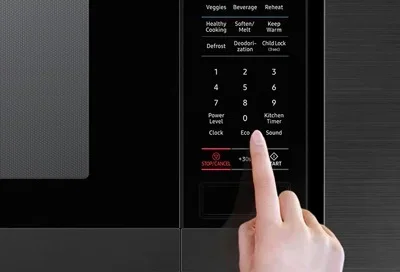
- Locate the Clock button on the control panel. It is usually labeled “Clock” or shows a clock icon.
- Press the Clock button once. The display should show a blinking colon or the current time.
- Use the number pad to enter the current time. For example, press 1, 2, 0, 5 for 12:05.
- Press the Clock button again or the Start button. The microwave saves the new time automatically.
- Verify the display. The clock should now show the correct time without blinking.
Quick Tip: If your microwave uses a dial instead of a number pad, simply turn the dial clockwise or counter clockwise to adjust the hours and minutes. Press the Clock button to confirm each setting.
Method 2: Using the Timer and Clock Buttons Together
Some Samsung models require a different button combination. This method works well when the standard Clock button does not respond.
- Press and hold the Timer button for three seconds. The display may flash or beep.
- Press the Clock button. The time setting mode should activate.
- Enter the correct time using the number pad.
- Press Start or the Timer button again to save.
This method is especially common on Samsung over-the-range microwave models where the control panel layout is slightly different. If you own one of these units, this is likely the method you need.
Method 3: Using the SmartThings App (For Connected Models)
Newer Samsung microwaves with Wi-Fi connectivity let you set the clock through the SmartThings app. This is the most modern approach and works great if your kitchen is part of a smart home setup.
- Open the SmartThings app on your phone. Make sure your microwave is connected to the same Wi-Fi network.
- Select your Samsung microwave from the device list.
- Tap on Settings or Appliance Settings.
- Look for the Clock or Time option.
- Adjust the time using the on-screen controls.
- Tap Confirm or Save. The microwave clock updates instantly.
This Samsung microwave clock setting through the app is incredibly convenient. You do not even need to stand at the microwave to fix the time. It is one of the best features of newer Samsung smart kitchen appliances.
Common Samsung Microwave Models and Their Clock Setting Methods
Samsung makes many microwave models, and each one has a slightly different control panel layout. Below is a comparison of popular models and how you can set clock on Samsung microwave oven for each one.
| Model Series | Control Type | Clock Method |
|---|---|---|
| Samsung MS11K Series | Touch Pad | Press Clock button, enter time, press Clock again |
| Samsung MS23K Series | Dial + Touch | Turn dial to set hours, press Clock, turn dial for minutes |
| Samsung MS14K Series | Full Touch Pad | Hold Timer + Clock for 3 seconds, enter time |
| Samsung MS26K Smart Series | Smart Touch + App | Use SmartThings app or touch panel Clock button |
| Samsung MS18K Over-the-Range | Slide Controls | Press Clock, slide to adjust, press Start to confirm |
Always check your Samsung microwave user manual for model-specific instructions. The manual will have the exact button sequence and any special features unique to your unit. You can find digital copies on the Samsung website by entering your Samsung microwave model number.
Quick Tips for a Smooth Clock Setup
Setting the clock should be quick and easy. These quick tips will help you avoid frustration and get it done right the first time.
- Have your model number ready. Write it down or take a photo of the label on the back of the microwave before you start.
- Use fresh batteries if your microwave has a backup battery. Some models use a small battery to keep the clock running during power outages. If the clock keeps resetting, this battery may need replacement.
- Make sure the microwave is on a stable surface. Vibrations can sometimes cause the display to flicker or reset unexpectedly.
- Keep the control panel clean. Grease and food splatter can make buttons unresponsive. Wipe the panel gently with a damp cloth before pressing any buttons.
- Try a hard reset if nothing works. Unplug the microwave for two minutes, plug it back in, and try the clock setting process again.
Expert Insight from Appliance Technicians
Professional appliance repair technicians often see the same mistakes when people try to set clock on Samsung microwave oven. One of the most common issues is pressing the wrong button combination. Many users accidentally enter the timer mode instead of the clock mode, which leads to confusion.
Another frequent mistake is not holding buttons long enough. On some Samsung models, you need to press and hold a button for a full three seconds before the setting mode activates. A quick tap will not work. Technicians also recommend checking the Samsung microwave control panel for any moisture damage, especially in kitchens near the stove where steam is common.
Troubleshooting: When the Clock Will Not Set
Sometimes, even when you follow the steps perfectly, the Samsung microwave clock will not cooperate. This section covers the most common problems and their solutions.
The Display Is Blank or Unresponsive
If the display is completely dark, the microwave may not be receiving power. Check the outlet first. Try plugging another appliance into the same outlet to confirm it works. If the outlet is fine, the issue may be a tripped internal breaker. Unplug the microwave for five minutes, then plug it back in. This often resets the internal electronics and brings the display back to life.
The Clock Button Does Nothing When Pressed
A non responsive clock button can be caused by a sticky or damaged button. Try pressing firmly around the edges of the button. Sometimes food debris gets trapped underneath the touch pad. Clean the area carefully with a slightly damp cloth. If the button still does not work, the control board may need replacement. This is a job for a qualified technician.
The Clock Resets After a Power Outage
If your Samsung microwave clock keeps resetting after every power interruption, the backup battery is likely dead or missing. Most Samsung microwaves with digital displays have a small rechargeable battery or a coin cell battery on the control board. Replacing this battery usually solves the problem. Check your user manual for the exact battery type and replacement steps.
The Time Format Shows 12-Hour Instead of 24-Hour
Some Samsung microwaves default to a 12-hour format with AM or PM indicators. If you prefer a 24-hour format, you can usually switch it in the settings. Press and hold the Clock button for five seconds. The display should show an AM or PM indicator. Press the Clock button again to toggle between formats. This small change can make the Samsung microwave time display much easier to read.
Common Mistakes to Avoid When Setting the Clock
Even simple tasks can go wrong when you do not know what to watch out for. Here are the most common mistakes people make when trying to set clock on Samsung microwave oven and how to avoid them.
- Skipping the model manual. Every Samsung microwave is slightly different. Skipping the manual can lead to button combinations that do not work for your specific model.
- Not holding buttons long enough. A quick tap and a long press are two very different actions. Make sure you hold buttons for the full duration specified in the instructions.
- Ignoring error codes on the display. If your microwave shows an error code like “SE” or “E1” while trying to set the clock, do not ignore it. These codes point to specific issues that need attention.
- Forcing buttons when they do not respond. Pressing harder on a touch pad will not help and may damage the sensors. Stop and troubleshoot instead.
- Not resetting after a power surge. Power surges can corrupt the clock settings. Always do a full reset after a surge by unplugging the unit for at least two minutes.
Maintaining Your Samsung Microwave Clock for Long Term Accuracy
Once you have successfully set clock on Samsung microwave oven, you want to keep it accurate. Regular maintenance of the control panel and display goes a long way toward preventing future issues.
Wipe the control panel weekly with a soft, damp cloth. Avoid using harsh chemical cleaners that can damage the touch sensors. Keep the microwave away from direct steam and heat from your stovetop, as moisture can seep into the control board over time.
If your microwave has a backup battery, check it every six months. A weak battery will cause the clock to lose time or reset frequently. Replacing it is cheap and easy, and it keeps your digital microwave clock running smoothly between power cycles.
Also, make it a habit to check the clock after any major kitchen event, like a power outage or a circuit breaker trip. A quick check keeps your Samsung microwave settings accurate and your cooking routines on track.
Conclusion
Setting the clock on your Samsung microwave oven is a simple but important task. It keeps your kitchen organized, your cooking timers accurate, and your appliance running at its best. Whether you use the standard Clock button method, the Timer and Clock combo, or the SmartThings app, the process is straightforward and takes just a few minutes.
Remember to always check your Samsung microwave model number and user manual for model specific instructions. If you run into trouble, the troubleshooting tips in this guide should help you get back on track. A properly set Samsung microwave clock is one of those small things that makes a big difference in your daily kitchen routine.
Take a few minutes today to check your microwave clock. If it needs adjusting, follow the steps in this guide and you will be done in no time. Your kitchen will feel more organized, and you will wonder why you did not do it sooner.
Frequently Asked Questions
How do I set the clock on my Samsung microwave if the Clock button does not work?
Try pressing and holding the Timer button for three seconds, then press the Clock button. If that does not work, unplug the microwave for two minutes and try again. A hard reset often fixes unresponsive buttons and brings the clock setting mode back to life.
Can I set the clock on my Samsung microwave without the user manual?
Yes, you can. Most Samsung microwaves follow a similar process using the Clock button and number pad. However, we strongly recommend checking the manual or visiting the Samsung website with your Samsung microwave model number for exact instructions specific to your unit.
Why does the clock on my Samsung microwave keep resetting after a power outage?
This usually means the backup battery on the control board is dead or missing. Locate the battery compartment on your model and replace the battery. This is a common fix that restores clock memory after power interruptions.
Can I change the time format from 12-hour to 24-hour on my Samsung microwave?
Yes, most Samsung microwaves allow you to switch between formats. Press and hold the Clock button for five seconds to toggle the AM or PM indicator. Refer to your user manual for the exact steps on your specific model.
Is it safe to use the SmartThings app to set the clock on my Samsung microwave?
Absolutely. The SmartThings app is designed by Samsung for exactly this purpose. Make sure your phone and microwave are on the same Wi-Fi network, and the clock update will happen instantly. It is one of the safest and easiest ways to manage your Samsung microwave settings.
What should I do if my Samsung microwave display shows an error code while setting the clock?
Error codes like “SE” or “E1” indicate a specific issue with the control panel or sensors. Unplug the microwave for five minutes and try again. If the error persists, contact Samsung support or a qualified technician. Do not attempt to open the unit yourself, as this can void your warranty.
=== CONCLUSION ===
Setting the clock on your Samsung microwave oven is a quick and easy process that anyone can do. Whether you use the Clock button, the Timer combination, or the SmartThings app, you now have all the tools you need to get your Samsung microwave clock working perfectly. Keep this guide bookmarked for future reference, and share it with anyone in your household who needs a quick reminder. A well set clock means a well organized kitchen, and that is something worth taking a few minutes for today.